Home Page
By default Thrive will start in the "home page". This is a part of the applicationthat allows a quick glance at very many aspects of your workspace.
Presently, the home page consists of a number of tabs that in turn compriseof a number of widgets. You can configure both the tabs and widgets in themin very many ways.
A typical example of a home page might look like:
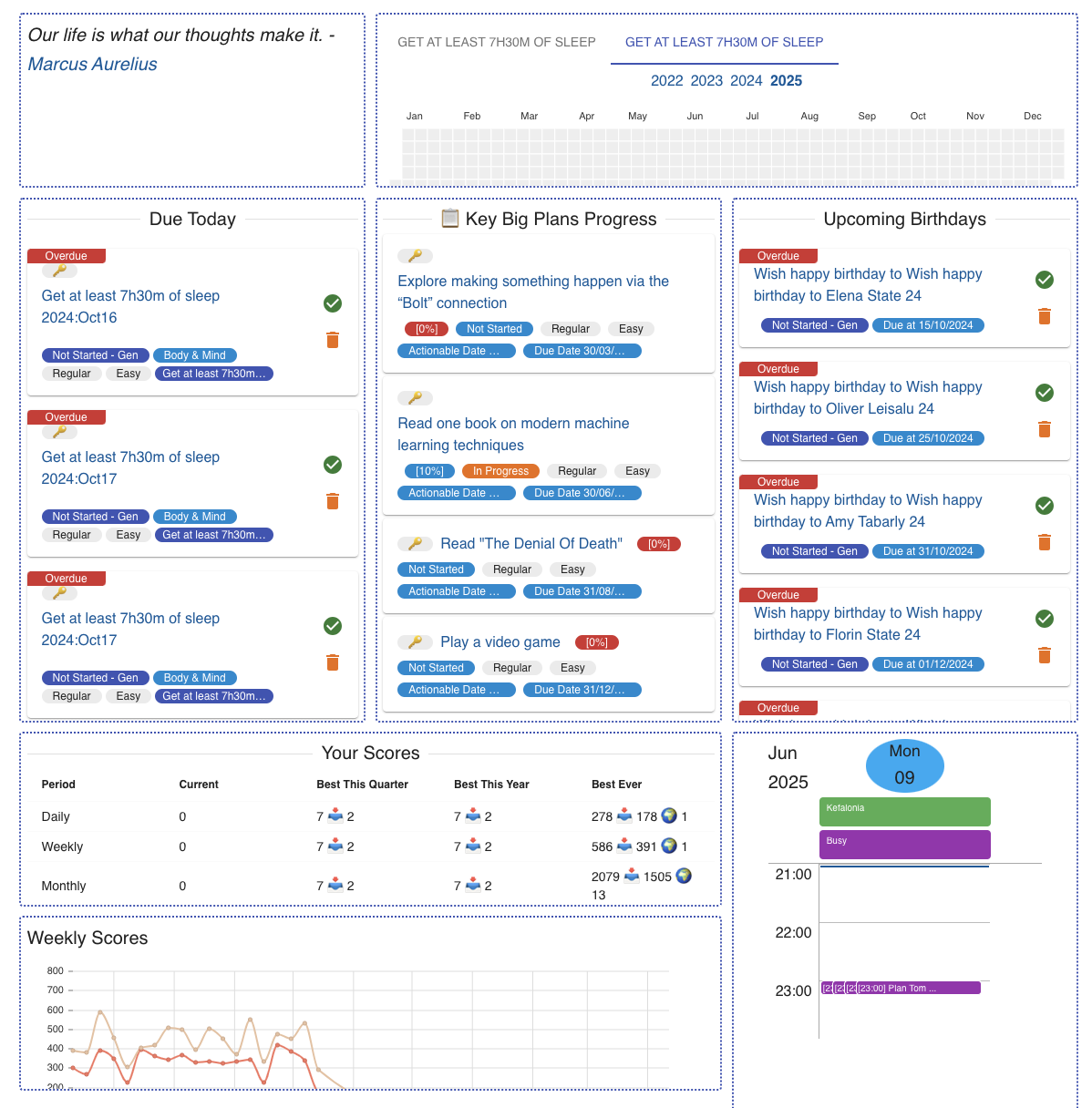
The top-level things to define are tabs. You can have big screen or_small screen_ tabs, to account for the various ways of viewing information.
Within a tab you can add widgets. Big screen tabs have a grid-likeplacement of
3 columns and many rows. Small screen tabs have a singlecolumn-like placement
with many rows.
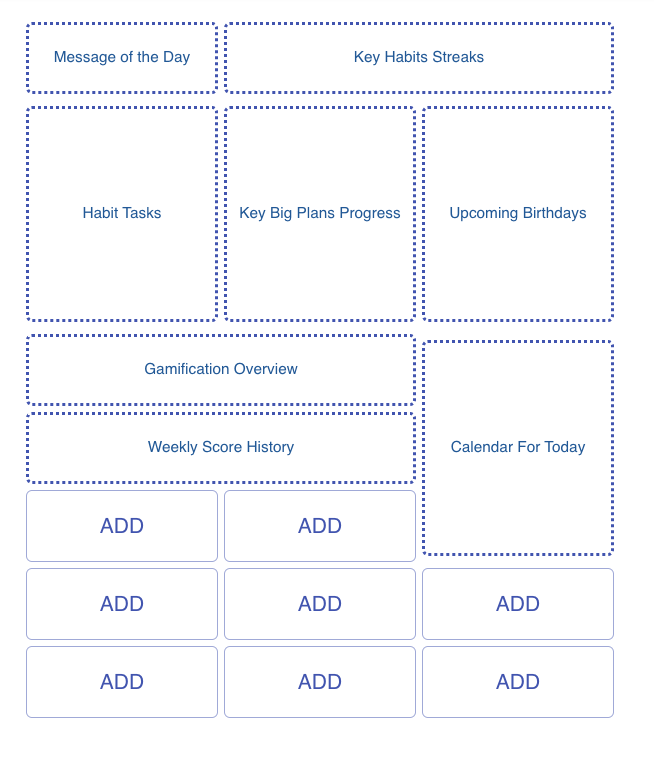
There are many types of widgets, and more are constantly added. Some examplesare:
- Message of the day
- Overview of habit streaks
- Today's calendar or schedule
- Quick links to time plans
- A random chore to do
- Collaboration invites and access requests (see Collaboration)
- And many more ...
Each widget you place has a certain position and occupies a certain sizein terms of cells in the grid. The widget type determines the size, witheach having several options, depending on the size of the screen.
Placed widgets can also have some configuration attached to them, suchas what and how to show. This allows for extra customisation, makingeach placement of a widget unique.
Some sizes are marked as kx1 or similar. These will spread to occupyas much
room as there is in the column/s that the widget takes. You cannotplace any
other widgets underneath them.
This is only available in the surfaces that have a large GUIinterface - the Web App, desktop apps, mobile apps, and PWAs.
Widget properties
Some widgets have properties: settings that belong to that one placement of the widget, and that depend on what the widget shows. You edit them in the "Widget Properties" section of the widget's settings, right under where you set its size and position. The properties and the placement are saved separately, each with its own Update button.
For example, the Key Habits Streaks widget shows the streaks of the habits you pick, in the order you pick them:
- Add habits with the Habits to show field. You can pick any habit you can see, including ones other people shared with you.
- Change the order, or remove a habit, with the arrows and the cross next to it in the list below the field.
- A widget with no habits shows nothing, and offers you a link to its settings.
The Key Big Plans Progress widget works the same way for big plans: you pick the big plans it shows the progress of with the Big plans to include field, and take one out with the cross next to it. The widget lays them out by how pressing they are, as it always has, so there is no order to set.
Because the habits and big plans belong to the widget and not to your workspace, you can place a widget more than once, each time with its own. A morning tab might show your morning habits, while the weekly review one shows the long-running ones.
If a habit or big plan you picked is archived, or stops being shared with you, the widget quietly leaves it out. Opening the widget's settings lists how many were left out, and updating the widget removes them for good.
A new widget starts with no properties set, and takes you straight to its settings so you can fill them in.